GTA 6 display settings: What to change for a clearer image
GTA 6’s console Display menu separates picture calibration from comfort filters. Here is what motion blur, HDR, brightness reduction and accessibility options actually change.
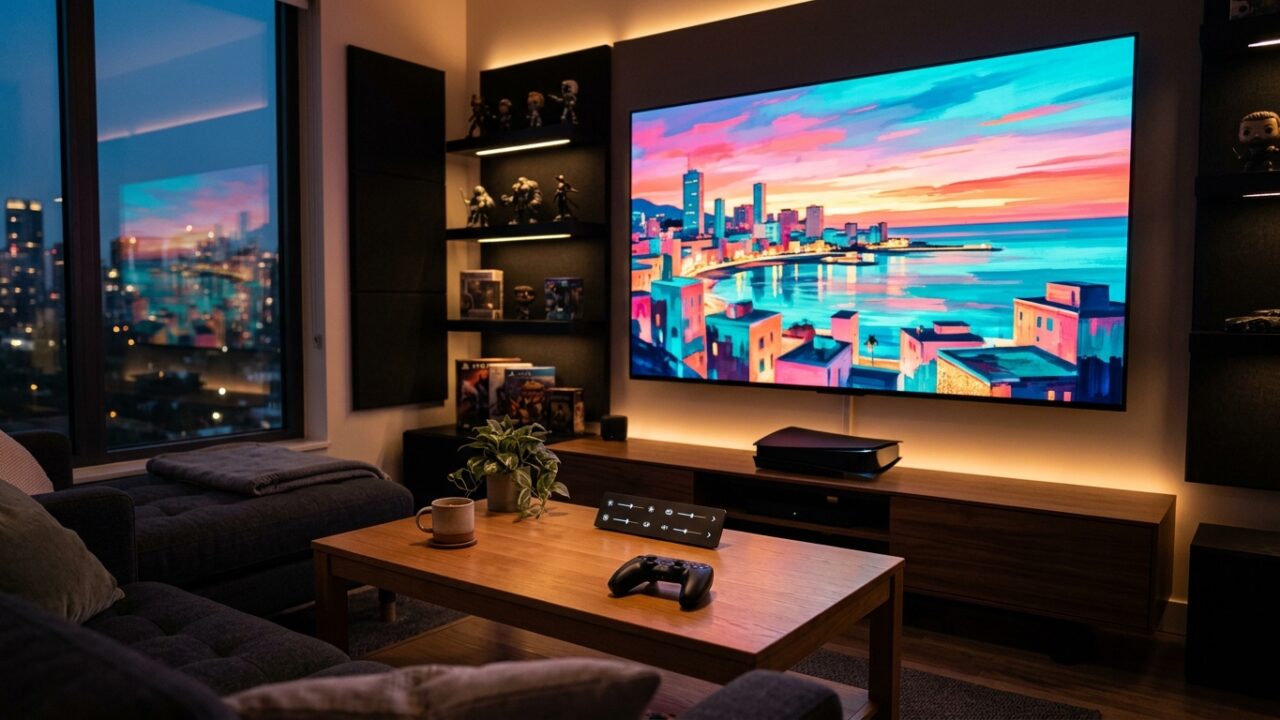
Grand Theft Auto 6 is now available on PlayStation 5 and Xbox Series X|S, and its console-focused Display menu offers more than a simple brightness slider. As IGN explains, players can pause the game, open Settings and use R1 on PS5 or RB on Xbox to reach Display. The most useful starting point is to calibrate the screen first, then adjust effects such as motion blur and brightness reduction for comfort.
Start with calibration, not the filter
IGN recommends adjusting Brightness Calibration until the Rockstar logo is barely visible, while Safe Zone should remain at its default unless parts of the interface are cropped by the television. The Click GG adds an important distinction: HDR-enabled displays use HDR Calibration instead of the standard brightness control, with separate tests for maximum brightness, black levels and paper white. Those values depend on the individual display, so copying a number from another player is not a like-for-like calibration.
This creates the clearest practical order of operations: correct the television and HDR output first, use the in-game calibration pattern second, and only then decide whether an accessibility filter is needed. The Click GG specifically describes Brightness Reduction as a way to soften bright in-world effects, not as a fix for incorrect HDR range or black levels. That means turning it on is not a substitute for repairing a washed-out or overly dark picture caused by display settings.
Motion blur is a preference, not a performance mode
Motion Blur Strength affects the blur applied when the camera or character moves quickly. IGN’s Jacqueline Thomas says she normally uses 1 or 0 because she prefers a clearer image, while Rockstar’s accessibility documentation confirms that motion blur is part of the game’s adjustable visual-effect options. Players who like a more cinematic presentation can leave some blur enabled; players who find fast movement uncomfortable have a documented reason to lower it.
Reducing the slider will not increase the frame rate. The Click GG describes the change as improving perceived sharpness during quick camera movement rather than raising performance. Red Bull’s settings guide therefore treats motion blur as an image-comfort choice and separately recommends using the television’s Game Mode and disabling motion smoothing. Those are different controls: one belongs to GTA 6, while the other changes how the TV processes the signal.
Brightness Reduction changes the world, not the HUD
IGN reports that Brightness Reduction applies a filter to the game world while leaving the HUD unaffected, but says the result can look washed out or almost blown out. Rockstar’s own accessibility page confirms the core function more neutrally, describing a filter that softens the overall brightness of scenes. The practical compromise is to leave it off when the picture already looks correct, then test it if bright lights or flashes are uncomfortable rather than enabling it as a general image-quality upgrade.
The same menu includes adjustable status, hit and awareness effects, dark flashbangs, high-contrast shaders and colorblind options. Rockstar says these features can be configured during the initial launch and changed later through Settings. Since Rockstar’s official launch page lists PS5 and Xbox Series X|S as the available platforms, these recommendations apply to the current console versions rather than a PC graphics-settings menu.
Discuss in the forum
What do you think about this story? Start the discussion in our forum.
Discuss in the forum →